You can now describe a website to ChatGPT and get back a live link. Not code to paste somewhere, not a mockup. An actual working website, hosted for you, that you can send to anyone.
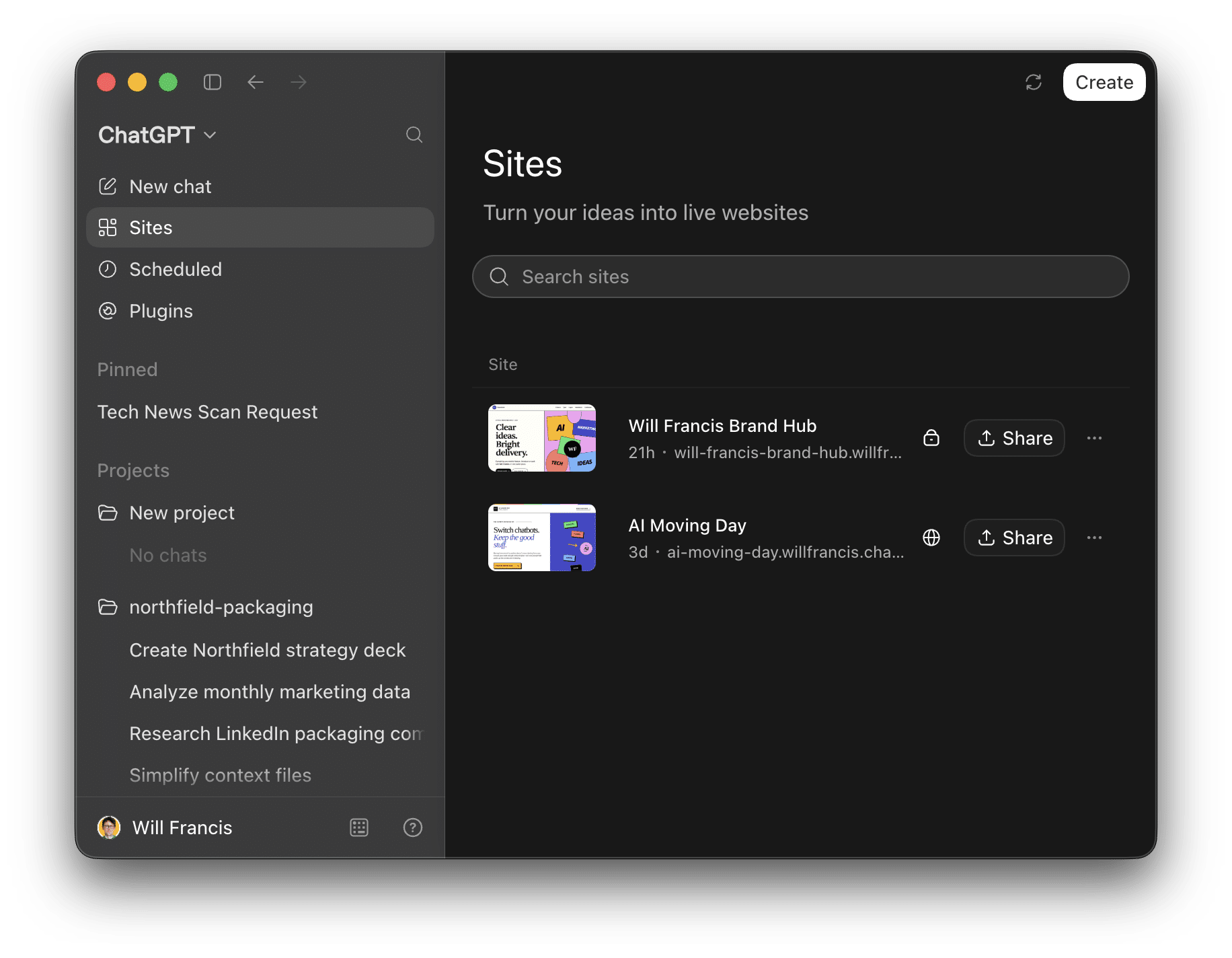
The feature is called ChatGPT Sites, and it’s aimed squarely at people who don’t build websites for a living. In this post I’ll explain what it is, what it’s genuinely good for, how to write a prompt that gets a decent result first time, and I’ll give you five copy-and-paste prompts for useful things to build this week.
What is ChatGPT Sites?
ChatGPT Sites is OpenAI’s answer to the wave of vibe coding tools like Lovable, Bolt and Replit. Their shared promise is that anyone can describe the website they want in plain English and get a working, live site in return. Databases, logins, payments and hosting are all handled behind the scenes. You just get a link.
Sites does all of that inside the ChatGPT app. There’s no separate account to set up, no deployment step, and nothing to install. You describe the site, ChatGPT builds it, and you share the link when you’re happy.
The important caveat is scope. You’re not going to build the next eBay or Google Maps with this. But that’s fine, because most of us don’t need to. What most marketers and business owners actually need are simple, useful things: a landing page, a small tool, a shared resource, a form. For that category of website, Sites is genuinely good.
What can you actually build with it?
The sweet spot is anything that’s mostly information, simple interaction, or light data. That covers more than you might think:
- Business websites and landing pages
- Small tools like calculators and generators
- Dashboards and trackers your team can update
- Link in bio pages
- Internal resources like brand guidelines or onboarding hubs
- Forms that collect and store submissions
Where it struggles is complexity at scale: apps with thousands of users, heavy custom logic, or anything handling sensitive data in serious volumes. Keep your ambitions modest and the results are impressive.
Where to find ChatGPT Sites
One quirk to know upfront: Sites only works in the ChatGPT app, not on the website.
In the app, tap the + button, go down to Plugins, and select Sites. You’ll also find it in the left-hand menu, just under New Chat, where it has its own section. That’s where you create new sites and see the ones you’ve already made.
How to write your first prompt
You don’t need a long, technical brief. A short prompt in three parts is enough to get a strong first version:
- What people achieve by visiting. One sentence. What do they get done by coming to this site?
- How that happens. What do visitors actually do? Fill in a form, pick some options, read a few sections, download files?
- What it looks like. A quick overview of the visual side. Include brand colours and fonts if you have them, plus any specific pages you want.
That’s it. Resist the urge to specify everything at the start. It’s far easier to refine a working site than to write the perfect brief. These landing page examples can help you decide on the layout and messaging.
When you hit go, ChatGPT may prompt you to switch into Work mode. Say yes. It’s the more capable mode, built for bigger jobs like this.
Tweaking and publishing your site
The first version will be close, but you’ll want changes. The easiest way to make them is to talk to ChatGPT as you look through the site and simply say what you’d like to be different. One change at a time works best.
When you’re happy, go to the Share menu and change the visibility to public. Your site is now live. Anyone with the link always sees the latest version, so when you make updates later, everyone gets them automatically. No re-publishing, no version confusion.
You can even connect a custom domain. Domain names are cheap, and there’s something quite satisfying about giving a small project its own proper address.
Five websites to build first
Here are five ideas that solve real problems for most teams, each with a prompt you can copy, adapt and paste straight into Sites. Anything in square brackets is a placeholder, so swap it for your own details.
1. An onboarding page
Everything a new client or new starter needs, on one link you send once. It’s just information, so nothing can break.
Build a website that gives new [clients / team members] everything they need to get started with [your business] in one place. Visitors read a short welcome, see who their key contacts are, learn how we work together, and find links to the tools and documents they'll use in their first few weeks. Make it a single scrolling page with clear section headings, a clean and friendly design, and [your brand colour] as the accent colour.
2. A pricing calculator
Visitors pick a few options, they get a number, and it shows the workings. Much better than emailing a spreadsheet someone’s going to fiddle with.
Build a website that lets potential customers work out a price for [your service] in under a minute. Visitors choose from a few options, such as [option 1], [option 2] and [option 3], and the site calculates a total and shows how it was worked out. Keep it to one page, with the options at the top, the price displayed clearly below, and a simple, uncluttered design in [your brand colours].
3. A campaign tracker
Milestones, owners, deadlines and a filter. It’s the shared spreadsheet nobody updates, except this one’s actually nice to look at.
Build a website that lets my team see the status of our [marketing campaigns / projects] at a glance. Visitors see a list of campaigns with milestones, owners and deadlines, and can filter by campaign, owner or status. Team members can add new entries and update existing ones. Use a clean dashboard layout with colour-coded statuses, easy-to-scan rows, and [your brand colour] as the accent colour.
4. A brand hub
Your colours, your fonts, logo files to download, tone of voice rules. One link instead of a folder nobody can ever find.
Build a website that gives anyone working with our brand everything they need in one link. Visitors see our brand colours with their hex codes, our fonts, our tone of voice rules, and can download our logo files. Lay it out as a single page with one clear section for each element and generous spacing, and use our actual brand colours and fonts throughout: [list your colours, fonts and any rules].
5. A request form
Design requests, holiday requests, IT problems, whatever. People submit, it saves them, and you get a proper queue instead of forty emails.
Build a website that lets my team submit [design / holiday / IT] requests so nothing gets lost in email. Visitors fill in a short form with their name, what they need and when they need it by, then submit it. Each request is saved to a list, sorted by date, with a status I can update. Keep the form to one simple page, and give me a separate page where I can see all submissions as a tidy queue.
Start small, then get ambitious
The best way to learn Sites is to build something slightly useful in the next half hour. Pick whichever of the five ideas above solves a problem you actually have, adapt the prompt, and hit go. Once the basic version works, add features one at a time.