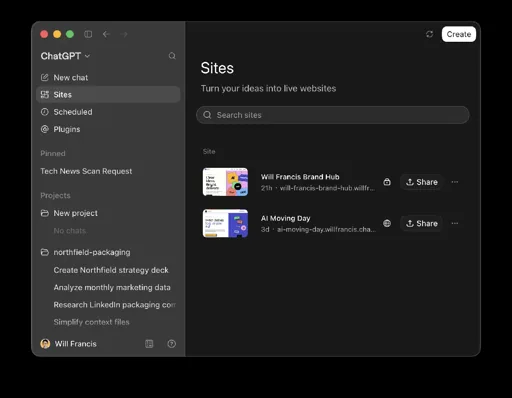
Here are the five ChatGPT projects from my video. If you’ve got a bank export handy, start with the budget dashboard. If there’s a book you’d like to put into practice, turn a chapter into a learning app.
Pick a project, tap Copy prompt and paste it straight into a new ChatGPT Work chat. ChatGPT will ask you one question at a time and build from your answers. Use the scheduling follow-ups in the chat that built your planner or pet. Reading on your phone? Save all seven prompts as a text file.

1. Build a desktop wall planner
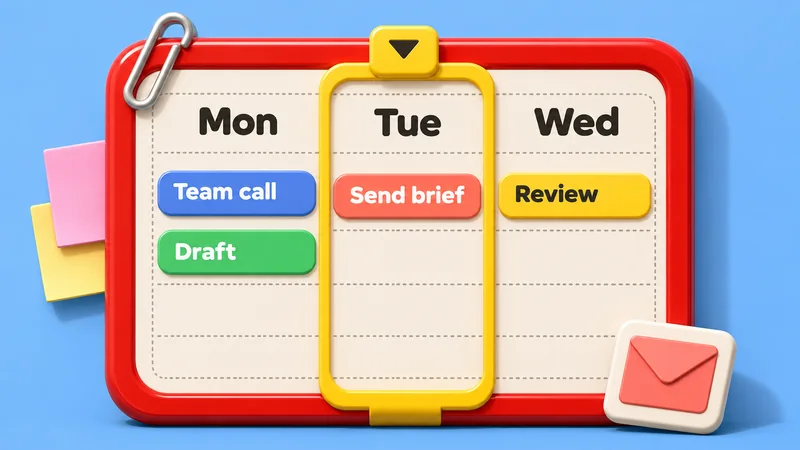
Your calendar has the meeting, your inbox has the deadline and the notes say who’s writing the brief. Bring all three onto one board so you can see where the work fits.
Start the interview with whichever source you use most. When you’re ready to connect it, open Plugins. If it has no plugin, you can give ChatGPT permission to read a website through the browser plugin or a desktop app through Settings → Computer use. OpenAI’s setup guide.
Help me build a private desktop wall planner for the next seven days. Use anything I’ve already shared. Start by asking where I keep track of my week if you don’t yet know. Wait for my answer and ask one follow-up at a time to find out what I want to see and which calendars, emails or meeting notes I want you to read. Help me connect the sources I choose, or let me paste in my plans.

Once you have enough to start, build the web app with one column per day. Put meetings at their actual times, deadlines on their due dates and undated tasks in a separate list. Combine duplicates, link to the source where possible and leave free time blank.

Open the planner for me and show when it was last updated. Keep access to my accounts read-only.
Check one meeting and one deadline against their sources. Once they look right, schedule the refresh in the same chat.
Help me schedule a morning refresh for this planner. Use any timings we’ve already discussed. Ask one question at a time until you know my preferred time, days and time zone. Wait for each answer before asking the next question.

If we built the planner from pasted notes, help me choose a source you can check again. Once the timing and source are clear, set up the recurring task and tell me when it will next run. Each time, update this same planner, show the refresh time and flag any source you couldn’t check.
Open Scheduled to check the next run. A cloud task can use connected services while your computer is off. If the task needs local files or desktop apps, leave the computer on and ChatGPT running. OpenAI’s guide to scheduled tasks.
2. Build a household budget dashboard
Start with a question you’d like your spending data to answer. One month of transactions is enough to try it. If you use a real bank export, remove account numbers and addresses before sharing it.
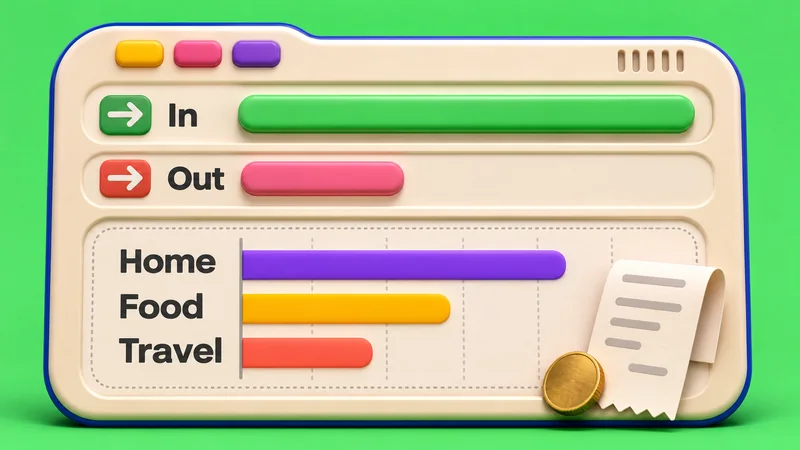
Help me build a private household budget dashboard. Ask what I’d most like to find out about my money and wait for my answer. Use any file I’ve already shared. Otherwise, offer me a choice of a bank export, a spreadsheet or sample transactions, and help me get started with the one I choose. Ask one question at a time, and only ask about things like dates or currency if the data leaves them unclear.

Build a view that answers my question. Show income, spending and what’s left each month. Sort spending categories from largest to smallest. Let me click a bar to see its transactions and correct a category. Separate transfers between my own accounts and flag uncertain matches.

Let me import next month’s file without counting transactions twice. Label any sample data clearly.
If you moved £100 from your current account to savings, your household spent £0. Find one transfer in your export and check how the dashboard treated it. Then ask for one extra view you care about, such as how much you spent on subscriptions last month.
3. Turn a topic into a learning app
“Help me re-cover a dining chair” gives ChatGPT a better brief than “teach me upholstery”. Pick something you want to do, whether that’s fixing a chair or spotting a renewal clause in a contract. Attach a chapter, manual or PDF if you have one.

Help me build an interactive course. Start by asking what I’d like to be able to do by the end. Wait for my answer. If my topic is broad, help me pick one practical goal. Use any materials I’ve shared. Ask one question at a time to fill gaps about my starting level or references I’d like to learn from.

Once you know my goal and starting point, build a web app with five short lessons. Include a worked example, a task and a decision for me to make in each one. If I share material, point me to the relevant page or section. In the quiz, let me answer before revealing the explanation. If I get stuck, offer a hint and another try.

Save my progress on this device. End with a practical challenge that tests the goal I gave you.
Try getting the first question wrong on purpose. If the app just flashes a red cross, ask it to explain the consequence of your choice. In the chair course, what would happen if you cut the fabric exactly the size of the seat?
4. Customise a website with a Chrome extension
I got a PlayStation 5 this week and wanted to see the Metacritic score beside each game as I browsed. Your extension could do something quite different. You might hide spoilers on a sports site or add a button that copies the ingredients from a recipe.
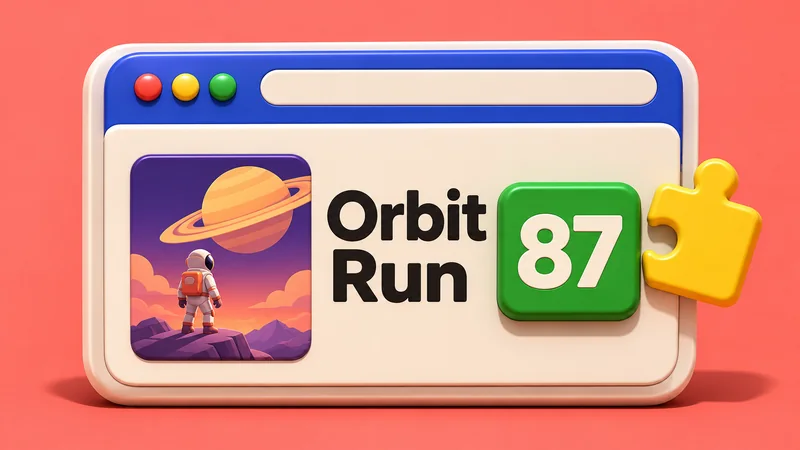
Help me build a Chrome extension for a website I use. Start by asking which website I’d like to change. Wait for my answer, then ask what I wish I could see, do or hide there. If I’m unsure, ask what I keep looking up in another tab, doing by hand or scrolling past.

Ask one question at a time and skip anything I’ve already explained. Once we’ve picked a change, get an example page URL, or a screenshot if you can’t see the page. Find out where the change belongs. For an information overlay, work out where the data will come from. For a new control or something I want removed, ask what the page should do when the extension is on.

Build the simplest working version with only the permissions it needs. Give me the complete Manifest V3 extension as a zipped folder. Walk me through installing it in Chrome and testing the change on my example page.
Unzip the folder, open chrome://extensions, turn on Developer mode and choose Load unpacked. Select the folder containing manifest.json, then reload the page you chose. Switch the extension off and reload again to compare. Chrome’s installation guide.
5. Build a Tamagotchi that lives in your day
Give a little creature a cottage and a pond, then let your day decide what happens there. Unread emails become parcels on its doorstep. Meetings bring visitors. A free afternoon sends it fishing. You’re turning real-world data into behaviour with a few simple rules.
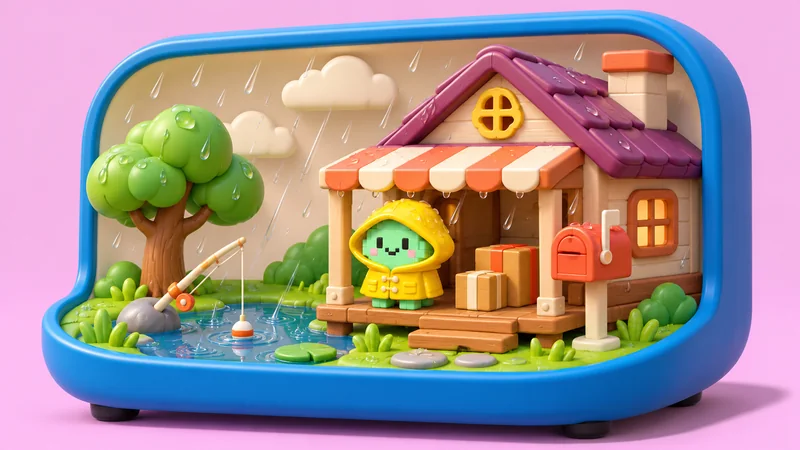
Help me build a private desktop pet that reacts to my day. Start by asking what kind of creature I’d like. Wait for my answer. Then ask one question at a time about the details I haven’t given you, including where it lives and which parts of my day should change its world. If I’m unsure, suggest a cottage with a fishing pond.

Help me choose a simple rule for each signal. For example, five unread emails could mean one parcel, meetings could bring visitors and a free afternoon could send my pet fishing. If I choose local weather, ask which town to use.

Build an animated web app with controls I can use to try each rule. Once I’ve tried it, offer to connect the sources I choose. Use counts and busy times for email and calendar. Keep names, messages and event titles out of the app.
Try changing one signal while the others stay the same. With the parcel rule above, ten unread emails should put two parcels by the door, whatever the weather. Once your rules work together, paste this into the same chat to schedule updates.
Help me schedule updates for the pet we built in this chat. Use the preferences I’ve already given you. If we haven’t picked an update frequency, ask how often I’d like its world to change and wait for my answer. If I’m unsure, suggest every two hours while I’m awake. Ask one follow-up at a time about the days, hours and time zone you still need.

If we’ve only tried the demo controls, help me connect a source first. Then set up the recurring task and tell me the next run time. On each run, read the sources I chose, apply my rules to the same pet and show when it last refreshed. If a source is unavailable, keep its last known value and mark it as out of date.
Keep your web app one click away
Open the app’s own URL in your browser. On a Mac, open it in Safari and choose File → Add to Dock. On Windows, open it in Edge and choose … → More tools → Apps → Install this site as an app. Then open edge://apps, select Details for your app and choose Pin to taskbar. Apple’s web app guide · Microsoft’s web app guide.