Claude Motion turns a written brief and your own content into a short animation. You can use it to explain a campaign result, show how a product works or turn a complicated idea into something people can follow.
You describe what you want, review the animation, ask for changes and download a video. This guide takes you through that process, with prompts you can copy and a simple marketing example to try.
Access checked on 14 October 2026: Motion is in beta on Claude Team and Enterprise. It is not currently included in Free, Pro or Max. Those plans’ access to other Claude features does not give you Motion. See Anthropic’s plan-by-plan Artifacts guide.
What is Claude Motion?
Launched on 8 October 2026, Motion creates animations from text, charts, shapes and images. Claude writes the code behind them, which makes details such as wording and timing editable. It does not generate realistic footage or AI people. Think animated explainers, rather than filmed scenes. Source: Anthropic’s launch announcement.
For marketing, useful starting points include:
- A campaign recap: explain the one result your team needs to understand.
- A product walkthrough: show a short sequence using your own screenshots.
- A social explainer: make a process understandable with a few words and moving shapes.
- An animated chart: reveal a comparison gradually, so viewers can follow it.
Choose one message for your first attempt. A whole quarterly report is usually too much for a short video; one finding from it is a much better brief.
Watch the official demo
Anthropic’s 81-second launch video shows bike-share data becoming a dashboard, then an animation for a team meeting. The Motion section starts around 0:39, with comments and team feedback around 0:53.
Check you have access
Open Claude in your browser and make sure you are using your organisation’s workspace. Motion is normally enabled on Team; an Enterprise owner needs to enable it. Source: Claude Motion help guide.
If Motion is missing, ask an owner to check Organization settings → Capabilities → Cloud code execution and file creation, then Organization settings → Artifacts. Artifacts and its Motion template need to be enabled. Enterprise group permissions can also affect access. Source: Artifacts admin guide.
How to create your first Claude Motion animation
1. Start a Motion conversation
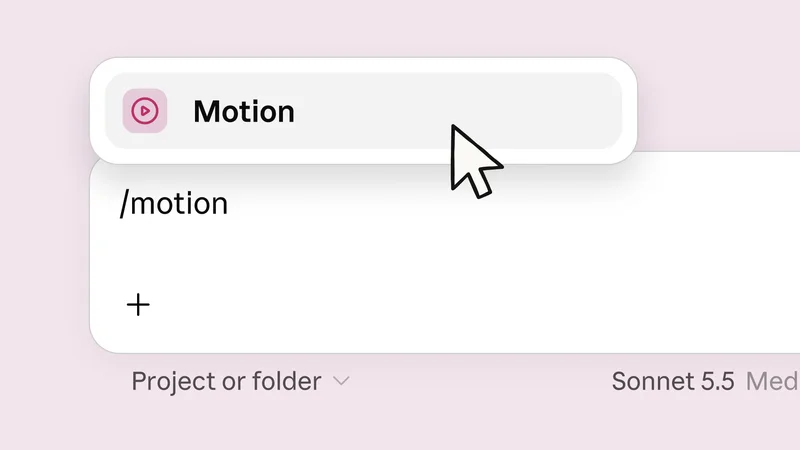
In a new chat, select Output → Motion, or open Artifacts and choose a Motion template. You can also ask for an animation in chat. Source: Claude Motion help guide.
Anthropic’s launch example also shows the /motion shortcut: type it into the message box and select Motion.
2. Give it the content and a clear brief
Attach the document, chart, images or notes you want to explain. For a branded video, include your logo, colours and font guidance. Tell Claude the audience, destination and intended duration. Those are the key briefing details in Anthropic’s guidance.
I would start with a 20-second video and three or four scenes. That is a suggested first exercise, rather than a product limit. Use this prompt and replace the square brackets:
Create a 20-second Motion animation from the material below.

Audience: [who needs to understand this].
Destination: [a team presentation, LinkedIn, Reels or another channel].
Format: [16:9 landscape, 4:5 portrait or 9:16 vertical].
Main message: [the single thing viewers should remember].
Final action: [what viewers should do next, or the final takeaway].

Use only the facts in my material. Do not invent numbers, quotations, features or customer claims. Ask if anything essential is missing.
Use the attached brand assets and colours. Keep the logo unchanged.
Use one idea per scene, large readable text and simple purposeful movement.
Keep the important content away from the edges and make the message understandable without sound.

Before building the animation, propose a short storyboard with each scene's on-screen words, visual and duration. Wait for my approval.

Material:
[paste your notes or refer to the attached file]
Asking for the storyboard first gives you a chance to fix the message before spending time on the animation. Check that the scenes tell a useful story, their durations add up, and the ending gives viewers enough time to read.
3. Review the choices and build it
Answer any follow-up questions Claude asks about the look or length. Once the storyboard is right, tell it to build that version. Keep the first attempt simple: clear words, one chart or visual per scene, and consistent colours.
Play the whole draft, then watch it again on a smaller screen. Check:
- Accuracy: names, numbers, units and claims match your source.
- Readability: you can read every line before it disappears.
- Meaning: the animation makes the point clearer.
- Brand: the logo, colours and imagery fit your business.
- Ending: the final takeaway or action remains visible long enough.
4. Make specific edits
You can request changes in chat or edit directly. Animations are saved in the Artifacts tab. Source: Claude Motion help guide. The official video also demonstrates comments placed on the video, including feedback from colleagues.
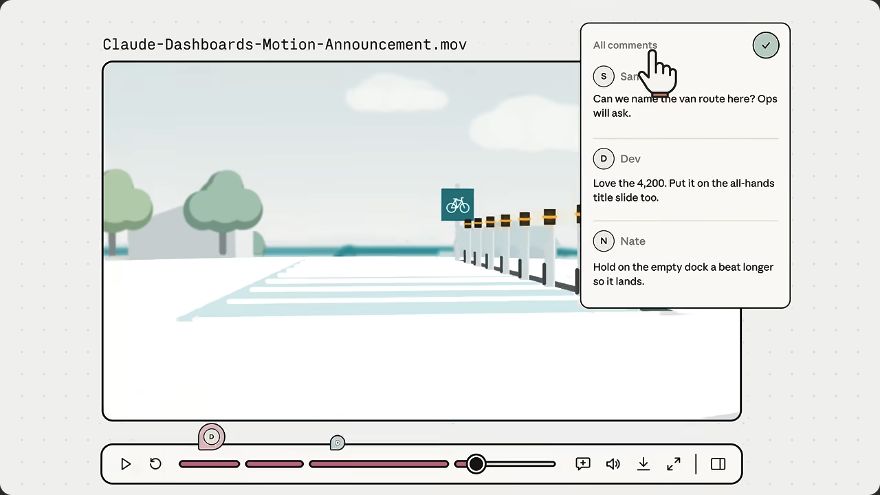
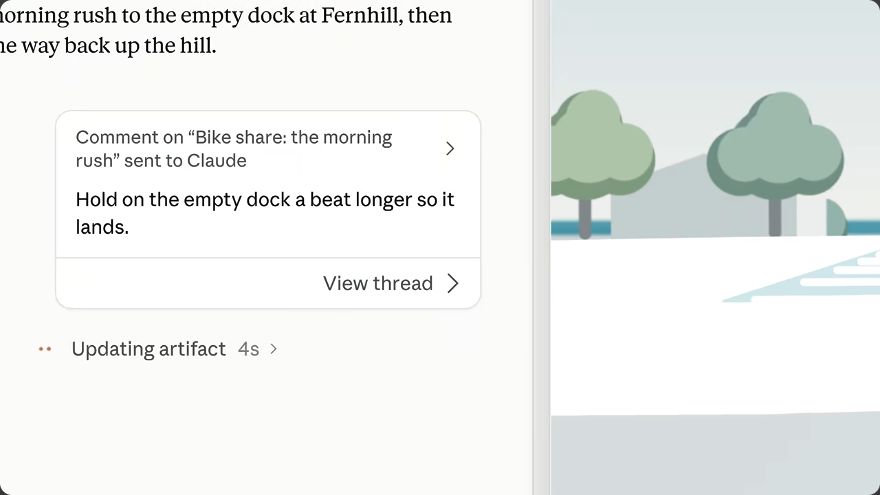
Be precise about the problem and what should stay. Try these individually:
In scene 2, keep the chart and numbers unchanged. Shorten the headline to five words and leave the completed chart visible for two seconds longer. Keep the other scenes unchanged.Adapt this animation for a 9:16 vertical phone screen. Recompose the scenes to use the available space rather than cropping the landscape version. Keep all facts and the final action unchanged. Use larger text and keep important elements away from the edges.The second prompt is a request for a new layout. Review the result to check that it has actually been recomposed and that nothing important is missing.
5. Export or share it
Choose Export → MP4 to download the animation. Motion counts towards your normal Claude usage allowance; complex or longer animations use more. Source: Claude Motion help guide.
Open the downloaded file and watch it from beginning to end before uploading it anywhere. Check the sound as well as the picture, and compare the exported words and numbers with your approved version.
For feedback inside Claude, open Share and choose the people and access level you need. New artifacts start private. External sharing depends on organisation settings, and recipients of new shared artifacts need a Claude account. An MP4 is often easier when people simply need to watch the finished video. Source: Anthropic’s sharing guide.
A finished Claude Motion animation
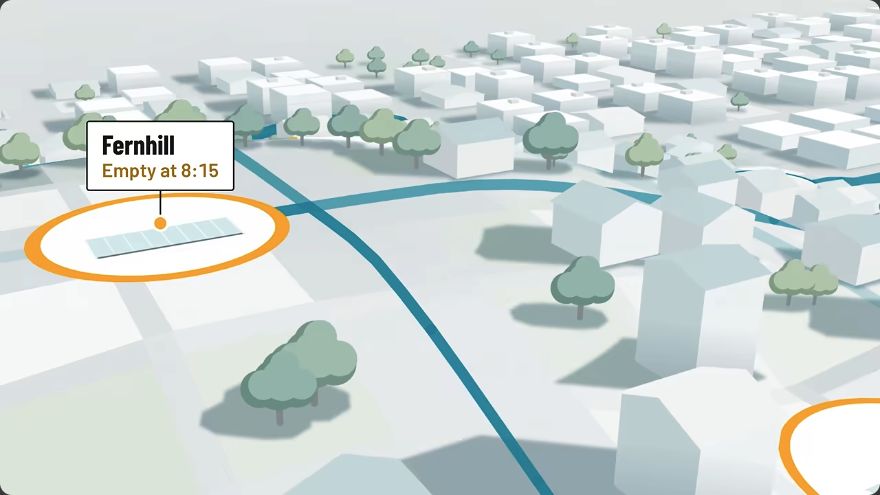
Anthropic’s official demo turns bike-share data into an animation for a team meeting. The excerpt below starts at 0:44 and stops at 0:53, showing part of the finished result.
Watch how the animated map directs attention to the bike docks and makes the data easier to follow. For your own video, use movement to reveal the point, then give viewers enough time to read the completed scene. The marketing exercise below gives you a separate brief to practise with your own figures.
A worked example: explain a campaign result
Here is a complete brief using made-up practice data, so you can try it without finding a report first. The story is simple: the same ad spend produced more signups, reducing the cost per signup.
Create a 20-second Motion explainer for a marketing team's weekly meeting, in 16:9 landscape.

These are fictional practice figures, not real campaign results:
August: ad spend £1,000; signups 100; cost per signup £10.
September: ad spend £1,000; signups 125; cost per signup £8.
That is 25% more signups and a 20% lower cost per signup.

Use four scenes:
1. 0–4 seconds: "Same spend. More signups." Show August and September side by side.
2. 4–10 seconds: Animate signup bars from a shared zero baseline: August 100, September 125. Show exact values.
3. 10–16 seconds: Show cost per signup: £10 → £8, then "20% lower cost". Label the metric clearly.
4. 16–20 seconds: "Next: investigate what improved." Hold the final message.

Use large text, restrained movement and high contrast. Keep a small "Practice data" label visible. Make the story understandable without sound.
Do not claim what caused the improvement: we have not supplied that evidence. Do not invent additional data.
First show me the storyboard and confirm the arithmetic. Wait for approval before building.
The arithmetic matters: signups rise by 25%, but cost per signup falls by 20%. They are different measures. Also, these figures alone do not tell you why performance improved. Your prompt should prevent the video from turning a comparison into an unsupported success claim.
Three more prompts for marketers
Replace the brackets and attach the relevant source material. These are starting briefs; check the storyboard before asking Claude to animate them.
A short product walkthrough
Create a 30-second Motion walkthrough of [feature] for new customers using my attached screenshots and instructions. Show three steps: [step 1], [step 2], [step 3]. Use the real interface labels and show where the user should click. Do not invent screens or functions. End with [next action]. Use 16:9 landscape and our attached brand guidance. Propose the storyboard first.A vertical social explainer
Create a 20-second, 9:16 Motion explainer of [one concept] for [audience] watching on a phone. Use only the notes below. Open with the question the viewer wants answered, show one simple visual explanation, then end with [takeaway]. Keep on-screen text short, large and understandable without sound. Avoid tiny labels and keep important elements away from the edges. Propose the storyboard first.

Notes: [paste your explanation]
A report summary
Read the attached report and suggest its three most useful findings for [audience]. Include the source page or table for every number. Wait while I choose one finding. Then propose a 30-second Motion storyboard explaining that finding, its relevant context and [recommended next action]. Preserve units, dates and caveats. Do not animate until I approve the storyboard.Can you turn a Claude Dashboard into a video?
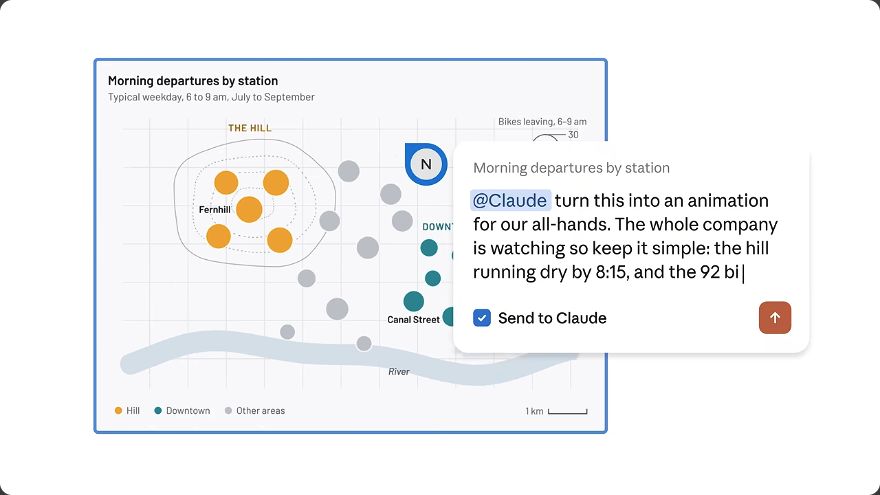
Yes: that is the workflow in the official launch demo. Once a dashboard reveals something useful, ask Claude to turn that finding into an animation. You can request it from a comment on the relevant chart where the interface offers that option.
@Claude Create a 20-second Motion explainer of this chart for our marketing team. Explain [one finding] and show [the key metric]. Preserve the chart's figures, date range and units. Do not infer causes the data cannot establish. Finish with [next action]. Show me the storyboard first.Check the chart’s source and date range before using it. Treat the exported MP4 as a snapshot: exporting a video does not make its numbers update when the dashboard changes.
What about music, voiceover and longer videos?
Anthropic’s current getting-started guide describes short animations, but does not specify a universal maximum duration or promise built-in narration. Check the options available in your workspace before planning a longer or narrated video.
For a first project, keep it short and check what your workspace offers. If your preview is silent, check the player’s mute control, then check the exported file. If you need narration, plan to record it or add it in an editor, matching the animation’s pacing to the spoken explanation.
For further production work, Anthropic lists handoffs to Adobe, Descript, HeyGen, Higgsfield, invideo, Luma AI and Runway. Canva and Captions are described as coming soon in the launch announcement. Source: Anthropic. Runway’s own announcement describes adding footage, images and sound, editing scenes and reformatting the animation there.
Common problems and how to fix them
- Motion is missing: check your plan, selected workspace and the owner’s Artifacts settings. Pro or Max access to Dashboards does not include Motion.
- You get an ordinary web animation: start again using Output → Motion or its template, so you are requesting the dedicated feature.
- The text goes too quickly: cut the words, simplify the scenes and ask for longer holds. Read the draft aloud to spot rushed sections.
- The figures are wrong: provide a small, clear source table and ask Claude to verify the calculations before building.
- The logo or screen looks wrong: supply the original asset and specify which parts must stay unchanged.
- A shared link will not open: check the viewer’s Claude sign-in, invitation and organisation sharing permissions.
- You hit usage limits: shorten the draft and make targeted revisions. Save an approved export before undertaking a larger revision.
My suggested first project
Take one result from a report you already use. Write the takeaway in one sentence, attach the source and ask for a 20-second storyboard. Approve the words and numbers, build the animation, make one round of specific edits and export it.
That gives you a useful first video and a brief you can adapt next time. For more help with Claude, see my guides to making Claude’s writing sound more human and Claude Skills for social media managers.
Research checked on 14 October 2026 against Anthropic’s launch announcement, Motion help guide, Artifacts plan and admin guides, sharing instructions, official launch video and Runway’s announcement. The prompts and fictional campaign exercise above are original examples for this guide.