One product photo can be the starting point for a whole set of marketing images. These five ChatGPT photo prompts give you a clean website shot, a flat lay for social media, a lifestyle photo, a billboard mockup and a seasonal campaign image.
If you came here from my video, here are all five shortcuts, ready to copy. They are codes you define with the instructions below. ChatGPT does not have these commands built in.
Copy all five photo prompts
Click Copy prompt to copy the complete block. Paste it into ChatGPT’s Custom instructions, then upload your original product photo in a new chat and type a code.
Treat these as my own shortcuts, not built-in commands. When a message starts with one, generate one square photorealistic image using my ORIGINAL uploaded product photo. Follow any extra details after the code. Preserve product shape, proportions, materials, colours, logo and all text. Do not invent features, claims or extra branding. Change the setting, not the product. If no original photo is available, ask me to upload it. Do not use a previous generated image as the product reference. No captions or watermarks.
/whitebg: Clean white seamless background, soft grounding shadow, even studio light, full product centred and sharp. No props.
/flatlay: Top-down on a neutral surface, 2-3 relevant props, natural light. Leave the top quarter clear for text. If suitable, lay the product on its side with its branding facing the camera.
/inuse: An adult using the product naturally in a believable everyday setting. Correct scale, grip and anatomy. Product clearly visible.
/billboard: Realistic roadside billboard mockup. Display a large photo of the product on a simple neutral ad panel. It is printed on the billboard, not a giant object in the street. No extra ad copy.
/seasonal: Use the season named after the code for props, setting and light; keep the product unchanged. If no season is named, ask which season.
You can also download the instructions as a text file. Keep this page handy for the example commands below.
How to set up the shortcuts in ChatGPT
- Open Settings → Personalisation → Custom instructions. Make sure customisation is enabled. ChatGPT may spell the menu “Personalization”.
- Add the full block above. Keep any existing preferences you want to use. Save your changes.
- Start a new chat and upload your original product photo. Choose a sharp photo with the whole product visible, including its logo, packaging or label.
- Type a shortcut. Try
/whitebgfirst. Add details after a code when you want to specify props, a setting or a season. - Check the result against your original. For the next shot, ask ChatGPT to use the original upload again, or reattach it.
OpenAI’s prompting guide explains using Custom instructions for preferences across chats. Its image-generation guide covers uploading references and describing what should change or stay the same.
Prefer to keep this inside one chat?
If your Custom instructions are already full, or you only want the shortcuts for this task, paste the message below into a new chat, followed by the complete prompt block above. Then upload your photo and send a code.
For this conversation, use the following five product-photo shortcuts. Learn these definitions and wait for my product image and command before generating anything.One product photo, five different shots
Here is the example from my video: a yellow DAY COFFEE CLUB tumbler with a coral sunrise design and a charcoal lid. It is a fictional demonstration product. These are AI-generated examples, using the same original product image as the reference for each new shot. They show the intended styles; your results will vary.
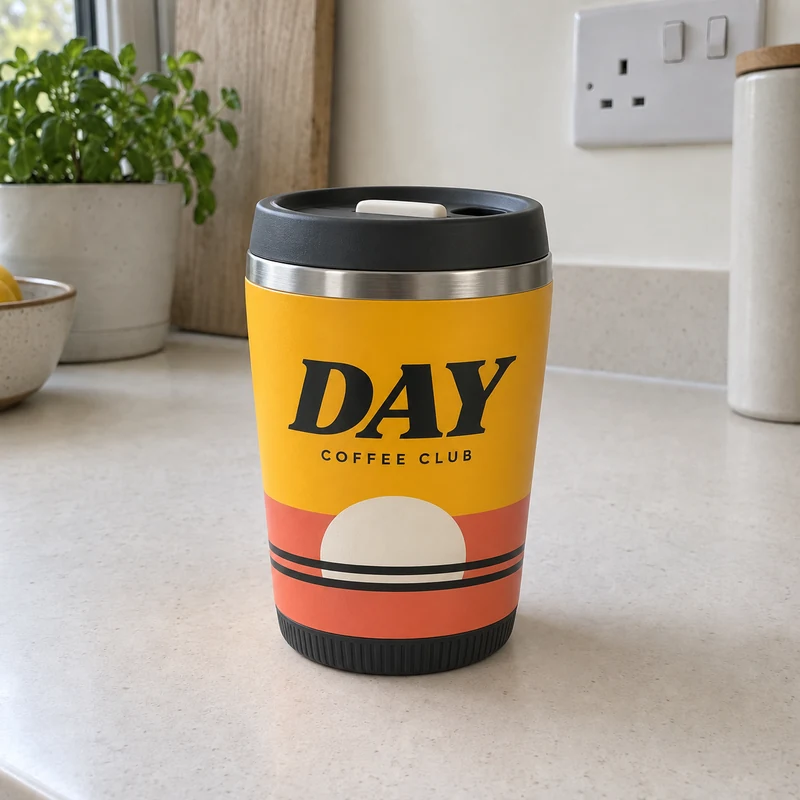
/whitebg: a clean website product shot
This puts your product on a white background with even studio light and a soft shadow underneath. It is a useful starting point for a product page or catalogue, with the product centred and no props competing for attention.
/whitebg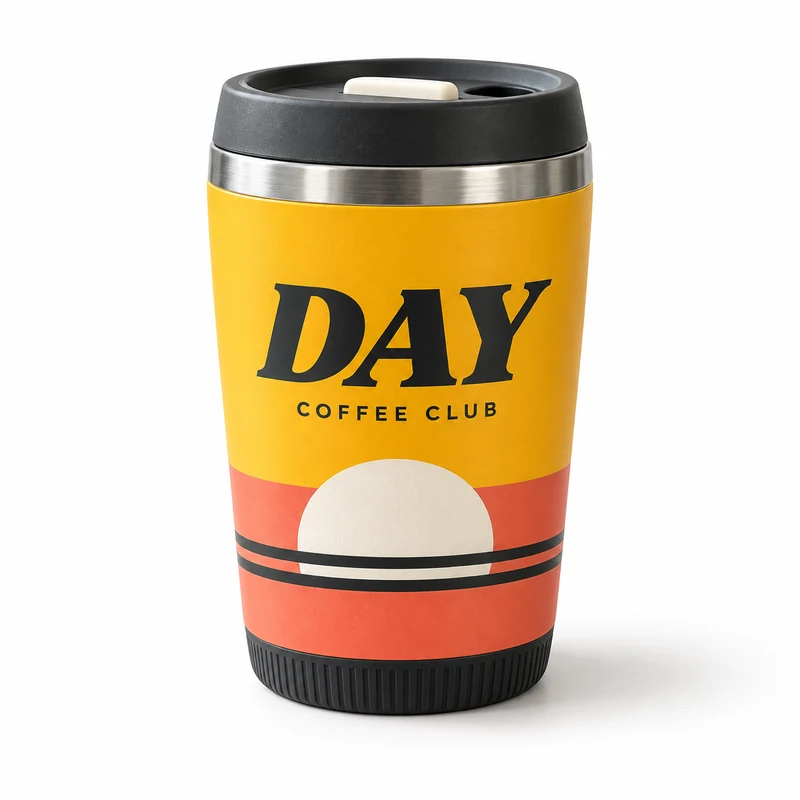
/flatlay: a social post with space for text
A flat lay is a photo taken from directly above. This shortcut adds two or three relevant props and leaves the top quarter clear so you can add your own headline afterwards.
Choose props that suit the product. For the coffee cup, I used coffee beans, a linen napkin and a notebook:
/flatlay Use coffee beans, a cream linen napkin and a charcoal notebook.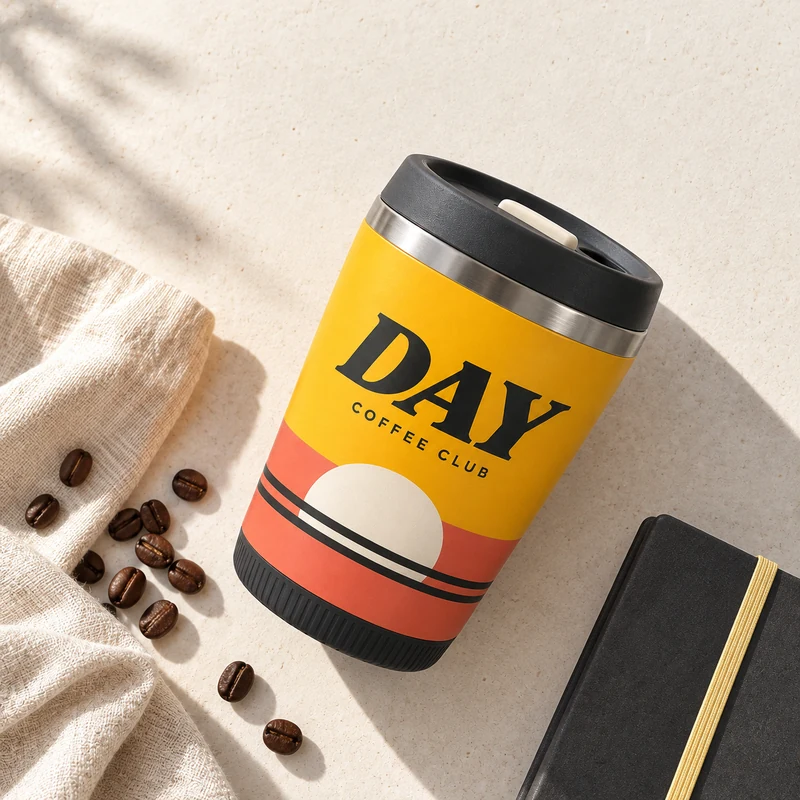
/inuse: a believable lifestyle photo
This shows an adult using the product in an everyday setting. Instead of a cup sitting on a table, you get someone having a coffee in a café.
Be specific about the setting and the action. The person should help tell the story while the product stays clearly visible.
/inuse Show someone sipping from the cup outside a cafe in morning sunlight.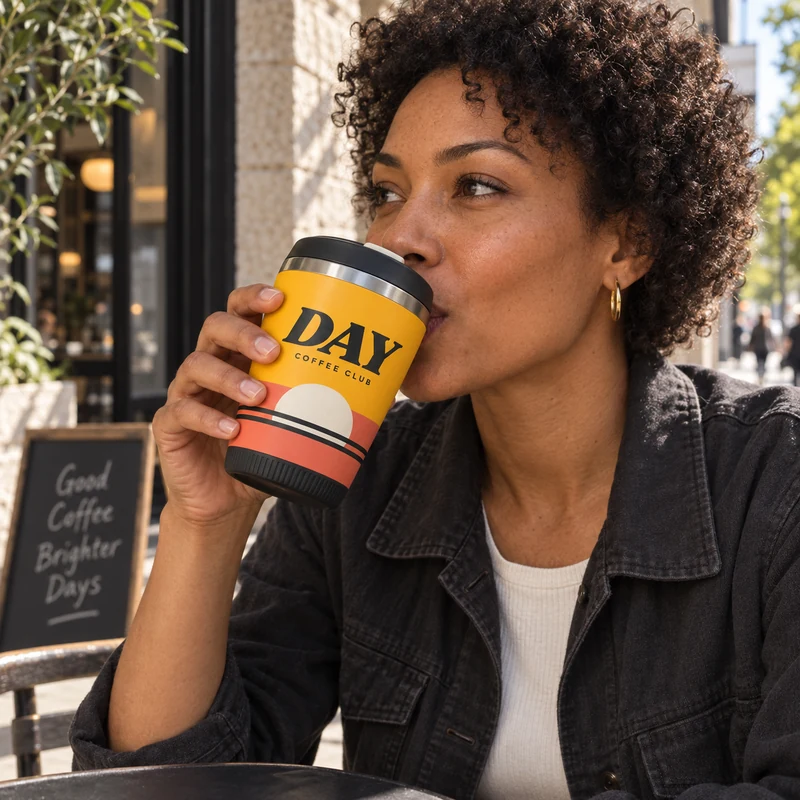
/billboard: a campaign mockup
This puts a large photo of your product on a realistic roadside billboard. It is useful for showing a client or colleague what a campaign could look like before you commission the final artwork.
The prompt specifies a printed image on the billboard, so ChatGPT has a clear instruction to follow. It also leaves out ad copy. You can add your own headline later in your design tool.
/billboard An illuminated British city billboard at dusk. Use a yellow circle and coral band on the ad panel, with no extra copy.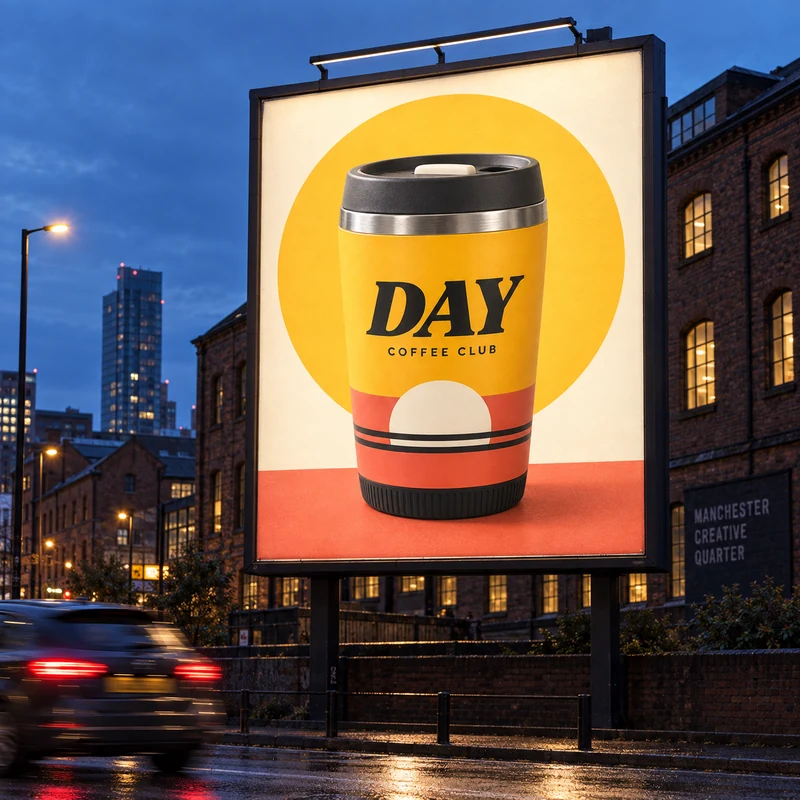
/seasonal: the same product, a different campaign
Put the season or occasion after the code. /seasonal Christmas asks for festive styling. /seasonal summer gives it a different direction.
For the Christmas example, I specified the decorations and colours:
/seasonal Christmas. Use a charcoal backdrop, evergreen sprigs, warm fairy lights and a coral gift box with cream ribbon.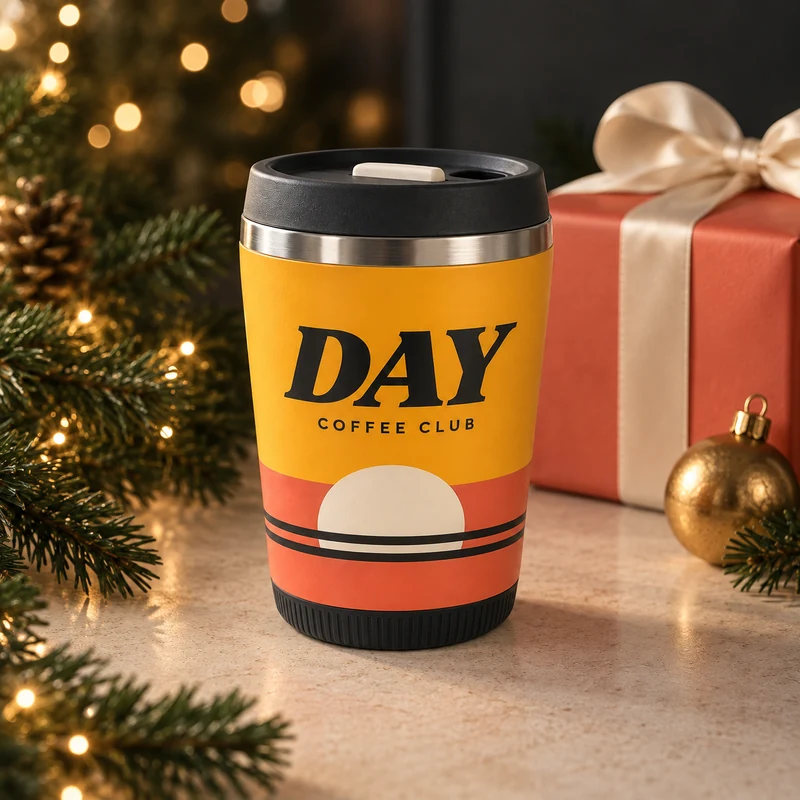
Getting better results from your product photo
Use the original every time. Generating the next shot from the previous result can carry small mistakes forward. Reattach the source photo if ChatGPT loses track of it.
Give useful extra details. Name the props, location, light or occasion you want. Keep those details after the code so the shortcut still defines the basic shot.
Compare the product carefully. The prompts ask ChatGPT to preserve it, but that is not a guarantee. Check the shape, proportions, materials, colours, logo and every letter. For an in-use image, check the scale, grip and hand anatomy too. Do not use an image that misrepresents what you sell.
Add final text yourself. These prompts avoid captions and extra branding. Put your headline, price or offer in your design tool after you have a result you are happy with.
If ChatGPT replies with text instead of an image, follow up with: “Generate the image now, using the original upload.”
Want to explore other image tools? See my practical comparison of AI image generators and more AI image prompts for marketing.
Start with your clearest product photo and copy the five shortcuts above. One source image gives you a consistent starting point for the whole set.